
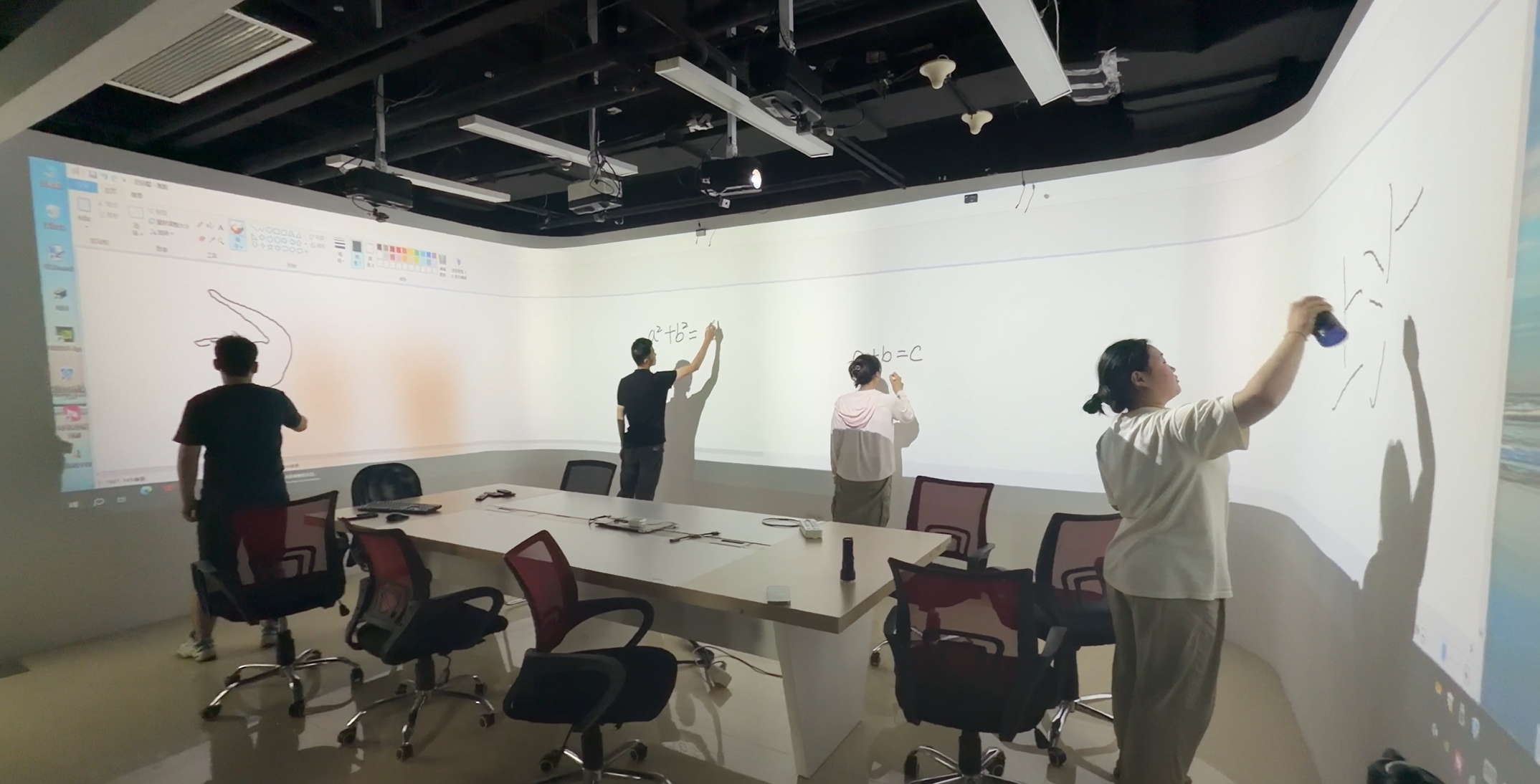
What should visitors be able to do inside an interactive exhibit—touch a wall, create effects with their footsteps, or collaborate across several screens?
At France’s Futuroscope, La Serre des Mondes, developed with Moment Factory, invites visitors to explore an environment where walking and touching help bring a fantastical plant world to life. For exhibition designers, it offers a useful starting point: define how visitors will participate before choosing the interaction technology.
Futuroscope is referenced here as an external industry example, not as an EASITECH installation. See the official project introduction.
For AV integrators, turning an experience concept into a working installation means answering practical questions. How many touch points must be detected simultaneously? Which surfaces need to respond? How will the touch hardware communicate with the content software?
This guide introduces EASITECH’s Gloview laser touch specifications and explains what to consider when selecting a system for a large interactive display.
Gloview Laser Touch System: Technical Specifications
The system combines a laser emission unit with a sensor camera. The following specifications provide a starting point for hardware selection and integration planning.
- Simultaneous touch capacity: 30 touch points in total across the entire system, regardless of the number of linked screens.
- Multi-screen operation: up to six linked screens, sharing the system’s total 30-point touch capacity.
- Touch latency: less than 30 ms, excluding game software processing and display response time.
- Positioning accuracy: maximum positioning error of 5 mm for the F Series under ideal conditions.
- Supported surfaces: walls, floors, LED screens, LCD screens, curved surfaces, circular screens, irregular screens, glass and sand-table models.
- Software interfaces: HID, mouse protocol and TUIO.
- Calibration options: automatic calibration, manual calibration and four-point calibration.
- Interference management: static masking, dynamic masking and reflection-point rejection.
- Sensor camera optics: six lens options covering throw ratios from 0.15 to 1.36. These specifications refer to the touch sensor camera, not the projector.
- Camera-to-computer transmission: up to 100 metres using network cable or optical fibre.
Watch Gloview Multi-User Touch in Action
Watch our multi-user touch demonstration to see Gloview in use with several participants.
Watch the Gloview multi-user touch demonstration on YouTube
For a similar installation, the number of participants should be planned around the software, the available space and the touch inputs required by each activity.
Start with the Interaction Design
A wall-based activity might ask visitors to select objects, draw lines or move digital elements. A floor installation might respond to footsteps. A multi-screen exhibit might divide visitors into separate activity areas.
Describe these actions before choosing the hardware. This helps the integration team identify the required detection area, touch capacity and software input method.
For projects involving movement throughout a room, specify whether the software needs touch coordinates on a surface, a visitor’s position in the space, or body-motion data. A touch-point specification alone does not describe full-body or three-dimensional tracking capabilities.
Plan Around Touch Points and Participant Numbers
Touch points and participants are different measurements.
One visitor using two fingers occupies two simultaneous touch points. A group activity may require one input per visitor, several inputs per visitor, or a sequence of actions taken in turns.
Gloview supports 30 simultaneous touch points across the whole system. Linking six screens does not multiply that capacity to 180 points.
When planning the exhibit, define:
- The number of visitors expected to interact at the same time.
- The number of simultaneous inputs required by each activity.
- Whether visitors share one continuous area or use separate screens.
- Whether the content software can process the required simultaneous inputs.
These details help match the touch hardware to the intended experience.
Understand Latency and Positioning Accuracy
Gloview’s touch latency specification is less than 30 ms. This figure excludes the time taken by the game software to process an input and by the display to show the resulting frame.
The response visitors experience therefore depends on the complete installation, including the computer, content software and display equipment. Evaluate the interaction using the actual software and visual output intended for the project.
For the F Series, the maximum positioning error is 5 mm under ideal conditions. When designing buttons, drawing activities or other precise interactions, consider this specification alongside the size of the interactive elements and the installation conditions.
Match the Hardware to the Surface
Gloview supports touch interaction on walls, floors, LED and LCD screens, glass, curved and circular surfaces, irregular screens and sand-table models.
Surface dimensions and geometry are important when selecting the sensor camera lens and planning installation positions. A flat wall, a curved display and a three-dimensional sand-table model require different layout considerations.
The sensor camera offers six lens options covering throw ratios from 0.15 to 1.36. These are touch-sensor lens specifications; projector selection remains a separate part of the visual display design.
For configuration discussions, provide the surface width and height, its shape, the intended interaction area and the available equipment mounting positions.
Explore our interactive wall projection systems for related product information.
Connect the Sensor, Software and Display
A complete installation needs both a touch-input connection and a visual-output connection.
The sensor camera connects to the computer over a distance of up to 100 metres using network cable or optical fibre. This distance refers to the camera-to-computer connection.
Touch data is provided through HID, mouse protocol or TUIO, depending on the integration configuration. Confirm which interface the content software supports and how it handles simultaneous inputs. A mouse-based application should not be assumed to support all 30 touch points.
The computer runs the content software and sends the visual output to the projector, LED screen or LCD screen through the display connection selected for the project.
Discuss the input interface with the software developer early, particularly when using custom content or combining several interactive areas.
For ready-made content options, explore Gloview Games and compatible interaction hardware.
Calibrate and Check the Interaction Area
Gloview provides automatic, manual and four-point calibration options. Calibration aligns the detected input with the intended positions in the displayed content.
Static masking, dynamic masking and reflection-point rejection support interference management during setup.
During commissioning, check the installation using the intended content and lighting conditions. Useful checks include:
- Touch alignment near the centre and edges of the interaction area.
- Response when several people interact simultaneously.
- Behaviour around screen boundaries in a linked-screen installation.
- Operation around reflective surfaces and areas excluded from interaction.
These checks help the integration team assess the complete experience under the conditions in which it will operate.
Frequently Asked Questions
Does 30-point touch mean 30 people can always play at once?
The system supports 30 simultaneous touch points. Participant capacity depends on how many inputs each person uses, the software’s multiplayer design and the physical space available.
Does each linked screen have 30 touch points?
No. The whole system shares a total of 30 simultaneous touch points, whether it uses one screen or up to six linked screens.
Does the less-than-30-ms latency include the game and display?
No. The stated touch latency excludes game software processing and display response time. The complete experience should be evaluated with the intended computer, software and display equipment.
Can Gloview work with LED and LCD screens?
Yes. Supported surfaces include LED and LCD screens, as well as projection walls, floors, glass, curved surfaces, circular screens, irregular screens and sand-table models. Share the surface dimensions and layout so the hardware configuration can be selected for the project.
How far can the sensor camera be from the computer?
The camera-to-computer transmission distance is up to 100 metres using network cable or optical fibre. Cable routing and the required connection equipment should be included in the installation plan.
Discuss Your Touch Hardware Requirements with EASITECH
Planning a large interactive wall, floor or multi-screen exhibit?
Send EASITECH a layout or site photo, the surface dimensions, the number of screens and a brief description of how visitors will interact. If the content software has already been selected, include its supported input interfaces.
As the manufacturer of Gloview laser touch hardware, we can help you select the sensor lens, review the touch configuration and discuss software connectivity for your integration project.
Explore interactive projection applications for museums and exhibitions, or contact us at [easitech@hotmail.com](mailto:easitech@hotmail.com).