
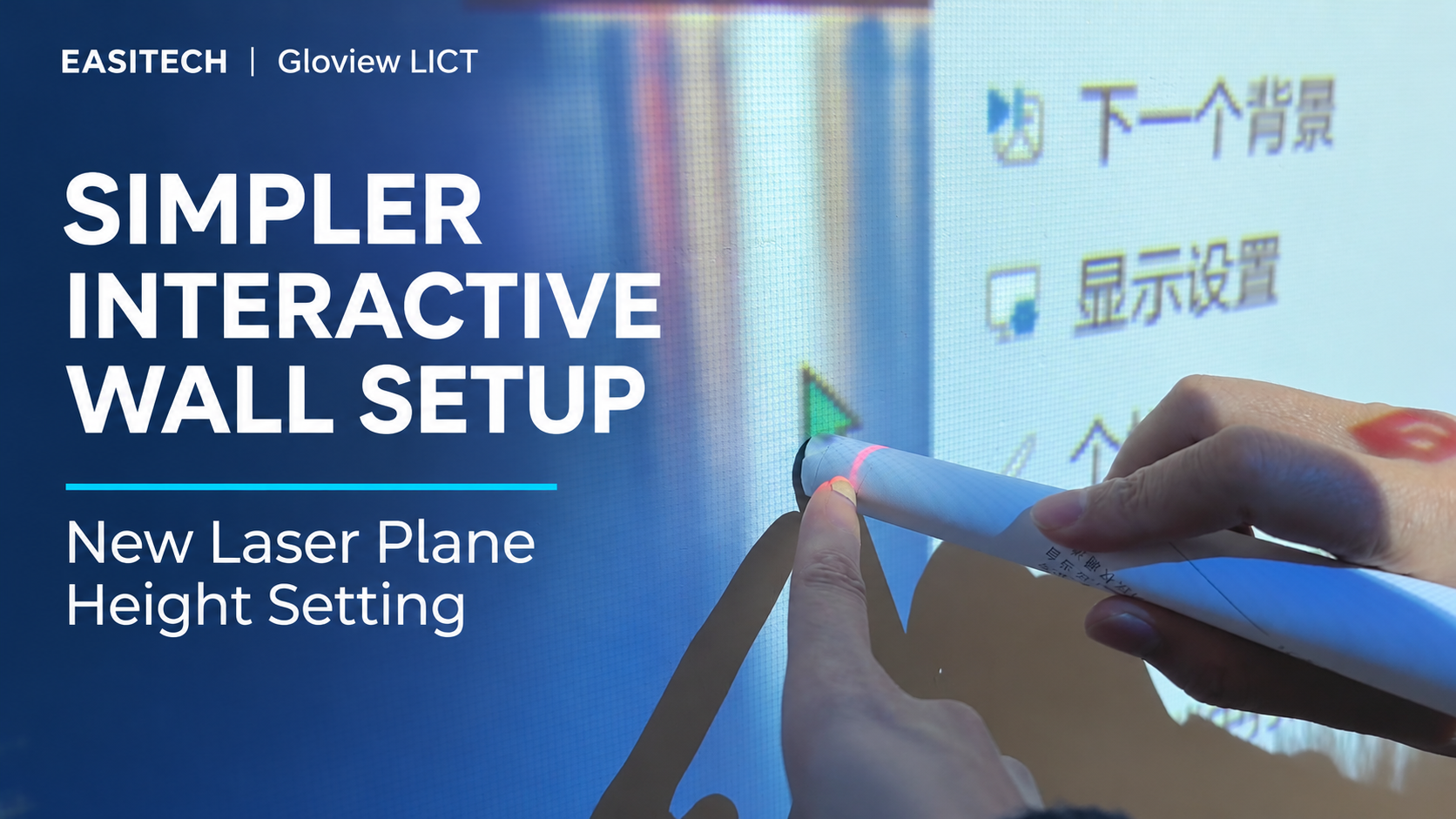
Simpler Interactive Wall Setup with Gloview LICT’s New Laser Plane Height Setting For AV integrators, installing an interactive wall involves more than mounting the equipment and aligning the projected image. Touch interaction also needs to work accurately before the system is ready for handover.
On some sites, reaching that point takes repeated adjustments. The wall may not be perfectly flat, or installation constraints may prevent the laser plane from sitting as close to the surface as intended.
Gloview LICT’s new laser plane height setting helps simplify this part of the setup process. Installers can enter the actual distance between the laser plane and the interactive surface, then run automatic calibration to improve click recognition under those conditions.
The goal is straightforward: help customers reach the required touch performance with less trial and error. Why the Distance from the Surface Matters On a conventional flat interactive wall, the laser plane should ideally run parallel to—and close to—the surface.
When the gap is larger, an intended tap may be interpreted as movement rather than a click. During setup, this can appear as pointer jitter, unintended dragging, or a click that does not register as expected.
Previously, installers might need to adjust the setup and test it repeatedly until they found a configuration that delivered reliable clicks.
Accurate interaction has always been part of a successful installation. This update focuses on making it easier to achieve. A Software Setting Based on the Actual Installation The new adjustment option allows installers to enter the laser plane height in the software and run automatic calibration.
Here, “height” means the gap between the laser plane and the interactive surface—not the equipment’s mounting height above the floor.
For example, if the laser plane needs to sit approximately 3 cm away from the wall, the installer can enter the corresponding height and run the adjustment. This helps the system recognize intended clicks accurately, addressing the jitter or movement that can occur when the plane is farther from the surface.
The 3 cm distance is an example, not a stated maximum operating range. Suitable settings should be confirmed for the installation.
By bringing this physical distance into the software setup, the feature gives installers a more direct way to address elevated-plane click behavior. Less Repeated Adjustment Before Handover For installation teams, the benefit is a simpler route from initial setup to a working interactive wall. Setup task How the new setting helps Address click problems associated with an elevated laser plane Provides a height setting based on the actual surface gap Find a suitable configuration Allows installers to enter the height and run automatic calibration Prepare the system for handover Helps reduce repeated adjustments before final interaction checks
Final verification remains essential. Installers should test the controls and gestures used in the actual project, including menu selection, content navigation, and any required writing or dragging.
The required result remains accurate touch interaction. The improvement is a more straightforward setup process for reaching it.
That matters to integrators working through installation, content checks, acceptance testing, and customer training. Reducing repeated work on one calibration issue helps the rest of the handover process move forward. Video Demonstration: Touch Operation on a Projection Wall [Insert the uploaded laser plane height demonstration video here.]
The demonstration shows desktop interaction on a projection wall, followed by writing and drawing operations. It provides a practical view of interaction under the demonstrated setup conditions.
For an installation assessment, test the actual application as well as basic desktop controls. A successful desktop click is useful, but the final check should also cover the buttons, menus, and gestures that visitors will use. Current Scope: One Height Setting Several site conditions can create a gap between the laser plane and the interactive surface:
- Uneven walls: Local recesses or surface variations can increase the gap in certain areas.
- Shaped exhibition surfaces: Different sections may sit at different distances from the laser plane.
- Curved surfaces: The gap can vary across the interactive area.
These conditions explain why laser plane height matters, but they do not all present the same calibration requirements.
The current version uses one uniform height setting. It does not support separate settings for individual regions.
Where the gap varies substantially across the surface, the installation requires site-specific testing. A single height value should not be treated as independent compensation for every area of a curved or irregular surface.
Further software improvements for curved-surface projects are planned. They are a development direction, rather than a capability included in the current release. Making Installation Easier for Our Customers At EASITECH, improving interaction also means improving the experience of the people who install and commission the system.
The new Gloview LICT laser plane height setting addresses a practical source of repeated setup work. It gives installers an additional adjustment tool when the laser plane cannot sit sufficiently close to the interactive surface, helping them work toward accurate clicks more efficiently.
If you are installing Gloview LICT or planning an interactive wall project, share your surface photos, interactive area dimensions, and approximate laser-to-surface gap with us.
We can help assess whether this feature is appropriate for your setup and advise on the adjustment process. Contact EASITECH to discuss your interactive wall project.